
What is the Pickup Monitor?
The Pickup Monitor shows the reservations created during a selected booking period.
Use it to understand how many bookings were received, how much revenue they generated, and how current pickup compares with another period.
Important: The Pickup Monitor is based on booking date, not stay date.
For example, if you select Last 14 days, the report shows reservations created during the last 14 days, even if the stays are for future months.
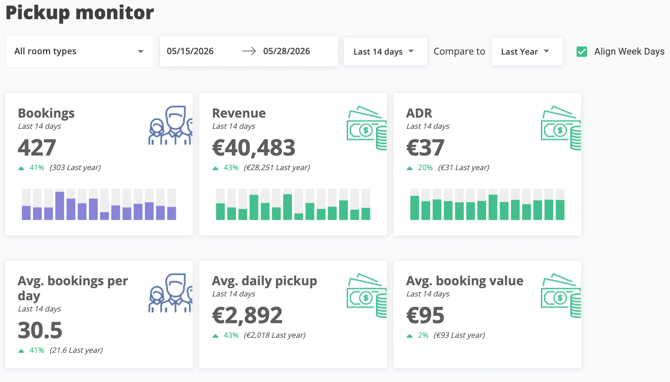 Pickup Monitor overview with room type, date range, comparison, and weekday alignment filters
Select room types
Use the Room types filter to choose which inventory to include.
You can select:
- All room types
- One room type
- Multiple room types
Use multi-select when you want to analyze a group of room types together, such as private rooms, dorms, suites, or premium rooms.
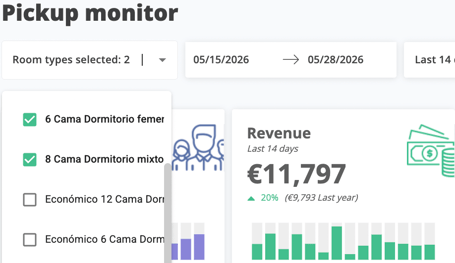
Use the room type selector to analyze all room types, one room type, or multiple selected room types.
Select the booking period
Use the date selector to choose the booking period you want to analyze.
The selected dates refer to when the reservation was created.
Compare with another period
Use Compare to to benchmark the selected period against another period, such as last year or the previous period.
Enable Align Week Days when you want to compare the same weekdays instead of the exact calendar dates.
For example, Monday is compared with Monday, Tuesday with Tuesday, and so on.